Training a model
You don't leave the chat to train a model. Tell QRY what you want to predict, point it at a table, and it trains, evaluates, and registers the model in ML Hub. From there you can promote it from Staging to Production, browse experiments, and monitor drift.
Supported algorithms: XGBoost, LightGBM, Random Forest, and Linear / Logistic regression.
Goal
You finish this page with a trained model registered in ML Hub, evaluated on a holdout split, and ready to promote.
Prerequisites
- A conversation bound to a datasource that contains a labelled training table.
- The train models permission in your role.
Steps
1. Describe the training task in chat
In the conversation, ask in plain English:
Train an XGBoost model on the customers table to predict churn.
Use balance, tenure, country, age as features. 80/20 train/test split.
QRY resolves the table, picks reasonable defaults you didn't specify (target column, encoding, hyperparameters), and explains its plan in the Processing Details before running anything.
2. Approve the plan (or refine)
The plan includes the chosen algorithm, the train/test split, the metric, and any preprocessing. Refine it like any other follow-up:
Use stratified split on the country column instead.
3. Wait for training to finish
Training runs on the configured executor — Kubernetes by default, Ray if your tenant has Ray enabled (ml_training.executor_type=ray in admin settings). Cold start of the K8s executor takes ~10-20s; small models train in seconds.
You'll see progress updates in the conversation. When training finishes, QRY posts the metrics (R², MAE for regression; AUC, F1 for classification), a confusion matrix or residual plot, and a link to the registered model.
4. Review in ML Hub
Hover the menu (≡) and click ML Hub to see all registered models.
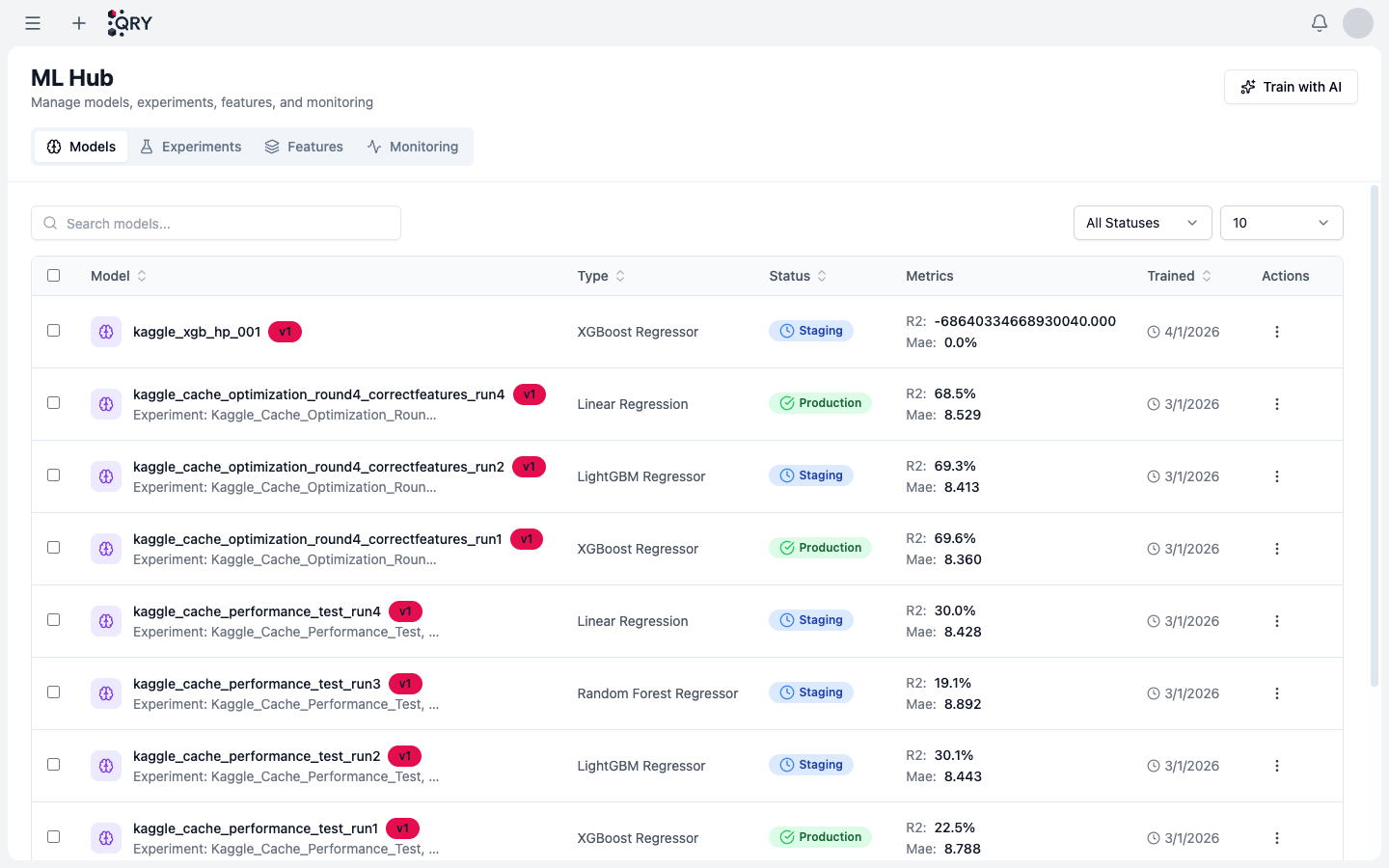
The list shows, per model: Type (algorithm), Status (Staging / Production), latest Metrics, and Trained timestamp. Click a model to see its experiments, feature importance, evaluation plots, and version history.
The tabs at the top switch between Models, Experiments (training runs, including ones that didn't get registered), Features (feature store), and Monitoring (drift and prediction quality alerts).
5. Promote to Production
A newly trained model lands in Staging. Once you're satisfied with its metrics, click the model and promote it to Production — that's the version downstream consumers (other QRY features, API calls) will use by default.
Promotion is reversible: you can roll back to a previous version any time from the version history.
Result
A model in ML Hub with a Staging or Production badge, metrics displayed on its row, and a version history you can roll back to.
Common issues
Training never starts. The executor (K8s or Ray) is unreachable. Check Admin > System Settings > ML Training.
Metrics look great in training but bad in production predictions. Likely train/test leakage. Look at the experiment in ML Hub — features that perfectly predict the target are usually the leak. Re-train without them.
Out-of-memory during training. Default K8s executor pod is 2 GB. For larger datasets, sample first or ask an admin to bump the resource limits in the executor config.
The model doesn't show up in ML Hub. Training crashed before the registration step. Open the experiment (Experiments tab) — it'll be there with a failed status and the stack trace.
See also
- Running Python — for ad-hoc analysis that doesn't need a registered model.
- Creating charts — matplotlib / plotly conventions.
- ML Integration reference — full feature reference, including the Ray executor option.