Creating a workspace
A workspace is a team-scoped collaboration space. Conversations, uploaded files, and AI memory inside a workspace are visible to its members, and the files are automatically indexed into a shared RAG context — anything the team uploads becomes searchable from chat.
One workspace = one auto-managed RAG context. Files added to the workspace are indexed; files removed are de-indexed.
Goal
You finish this page with a new workspace created, named, and ready to invite members to.
Prerequisites
- You're logged in.
- Your account has the create workspaces permission. If the + New Workspace button is hidden, ask your admin.
Steps
1. Open Workspaces
Hover the menu (≡) and click Workspaces. You'll see one card per workspace you belong to.
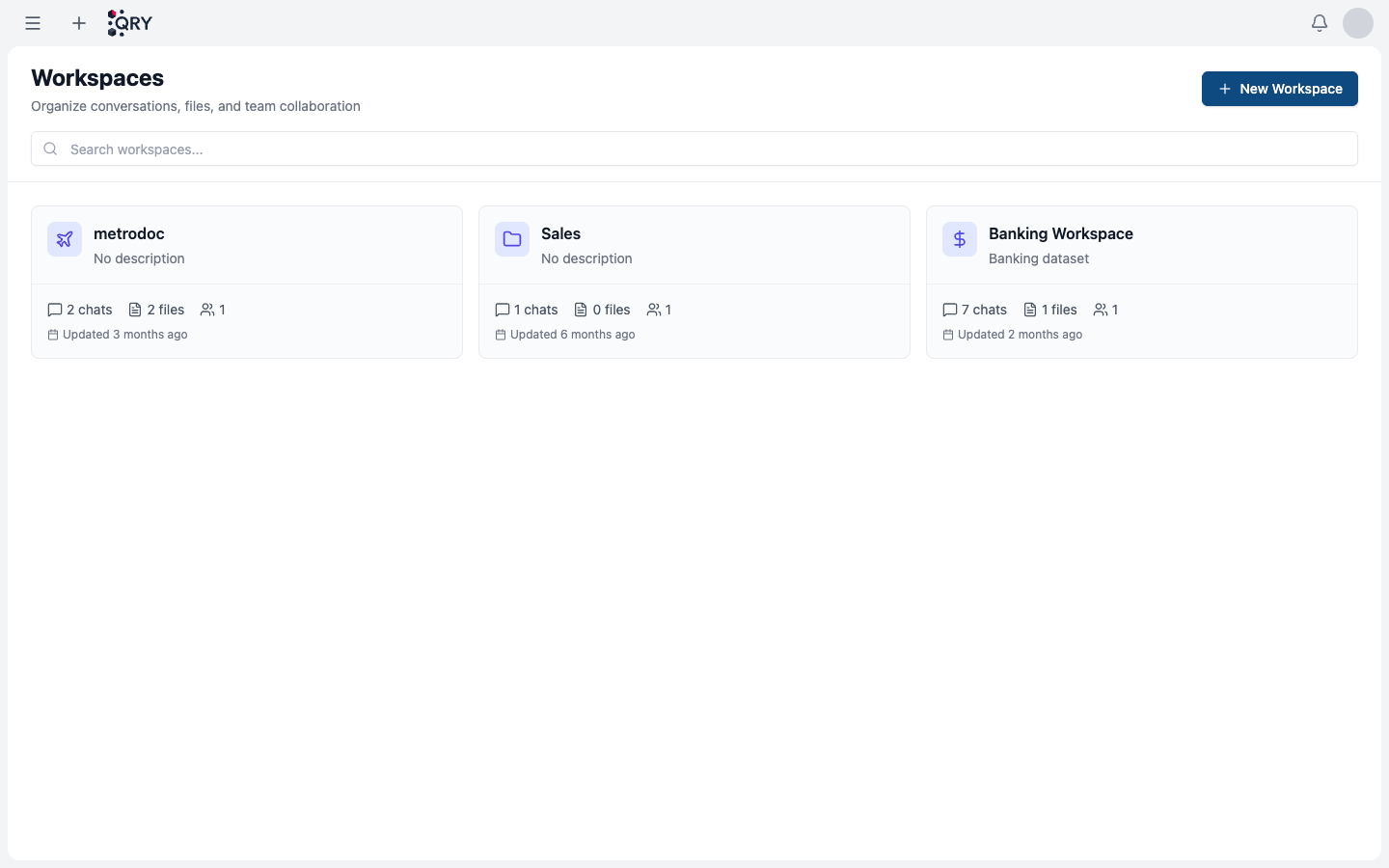
Each card shows the workspace name, a description, and three counts: chats, files, members.
2. Create the workspace
Click + New Workspace in the top-right. QRY asks for:
- Name — appears in the card and in the workspace selector.
- Description (optional) — shown on the card and in the workspace header.
- Storage backend — where workspace files live. Options: local, S3, GCS. Pick whichever your tenant has configured. If unsure, leave the default.
Click Create and QRY opens the new workspace.
3. Invite members
Open the workspace's settings and add team members by email. Each member gets one of: viewer, editor, or admin.
A member added to the workspace can:
- See all conversations and files in the workspace.
- Use the workspace's RAG context from chat.
Workspace membership does not grant access to the underlying datasources — RBAC at the datasource level is checked separately at query time. A workspace member who isn't granted a datasource will see workspace files but won't be able to query against that datasource.
4. Set a default datasource (optional)
In workspace settings, you can pin a default datasource. New conversations created inside the workspace pre-select that datasource, saving everyone a click.
Result
A workspace card visible to you (and to anyone you've invited) on the Workspaces list, ready to receive conversations and files.
Common issues
The "+ New Workspace" button isn't visible. Your account doesn't have the create workspaces permission. Contact an admin.
A teammate I invited can't query the data. Workspace membership ≠ datasource access. The teammate needs a separate RBAC grant for the datasource — see Connecting databases.
Files don't appear in chat as context. RAG indexing is asynchronous. After upload, indexing typically completes within seconds; for very large files it can take a minute. The file shows a Indexing badge while it's in progress.
See also
- Inviting members — roles and permissions.
- Shared files and memory — RAG context behaviour.
- Moving conversations — bring an existing conversation into a workspace.
- Workspaces reference — full feature reference.