Starting a conversation
A conversation in QRY is a chat session bound to a specific schema of a datasource. You don't pick the datasource in the chat itself — you start from the Catalog, select what you want to query against, and click Open in Chat.
Goal
You finish this page with a fresh conversation open against the right schema, and one answered question on screen.
Prerequisites
- You're logged in. If not, see Your first login.
- An administrator has granted you access to at least one datasource. If the datasource list is empty in the Catalog, ask your admin — datasource access is controlled by RBAC.
Steps
1. Open the Catalog
Hover the menu (≡) in the top-left and click Catalog.
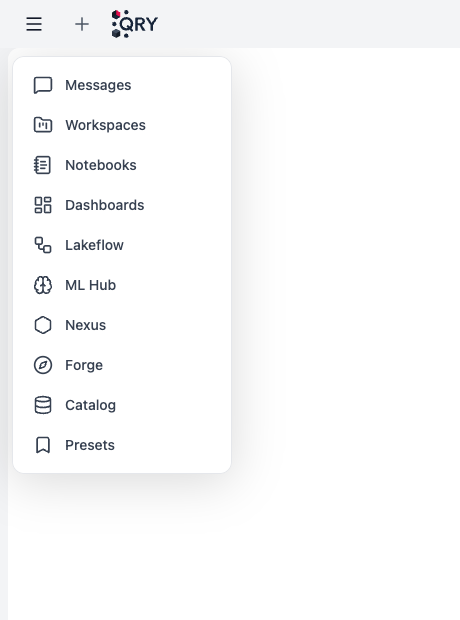
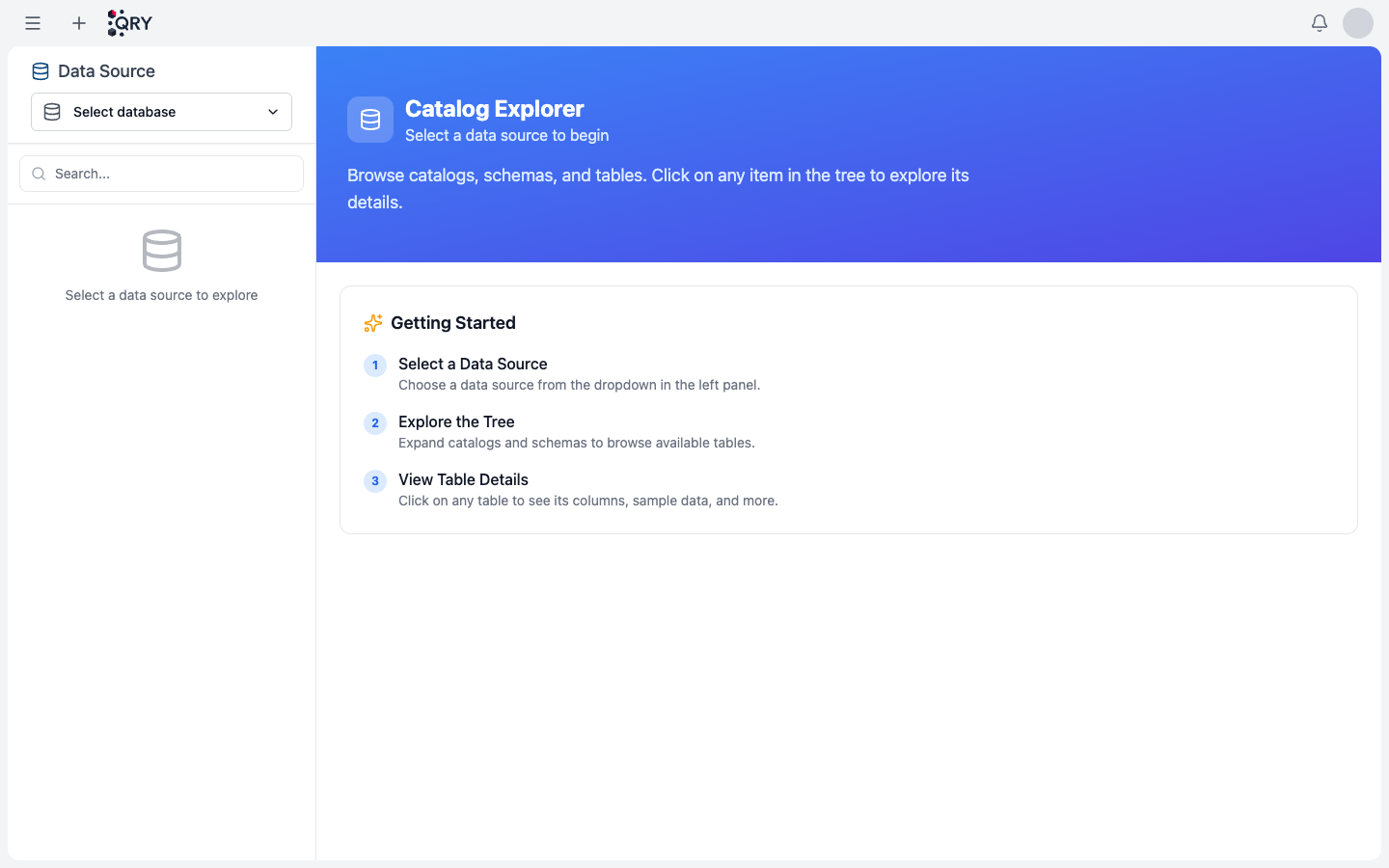
The Catalog Explorer opens, asking you to pick a data source.
2. Pick a datasource
Click Select database in the left panel and pick the datasource you want to query.
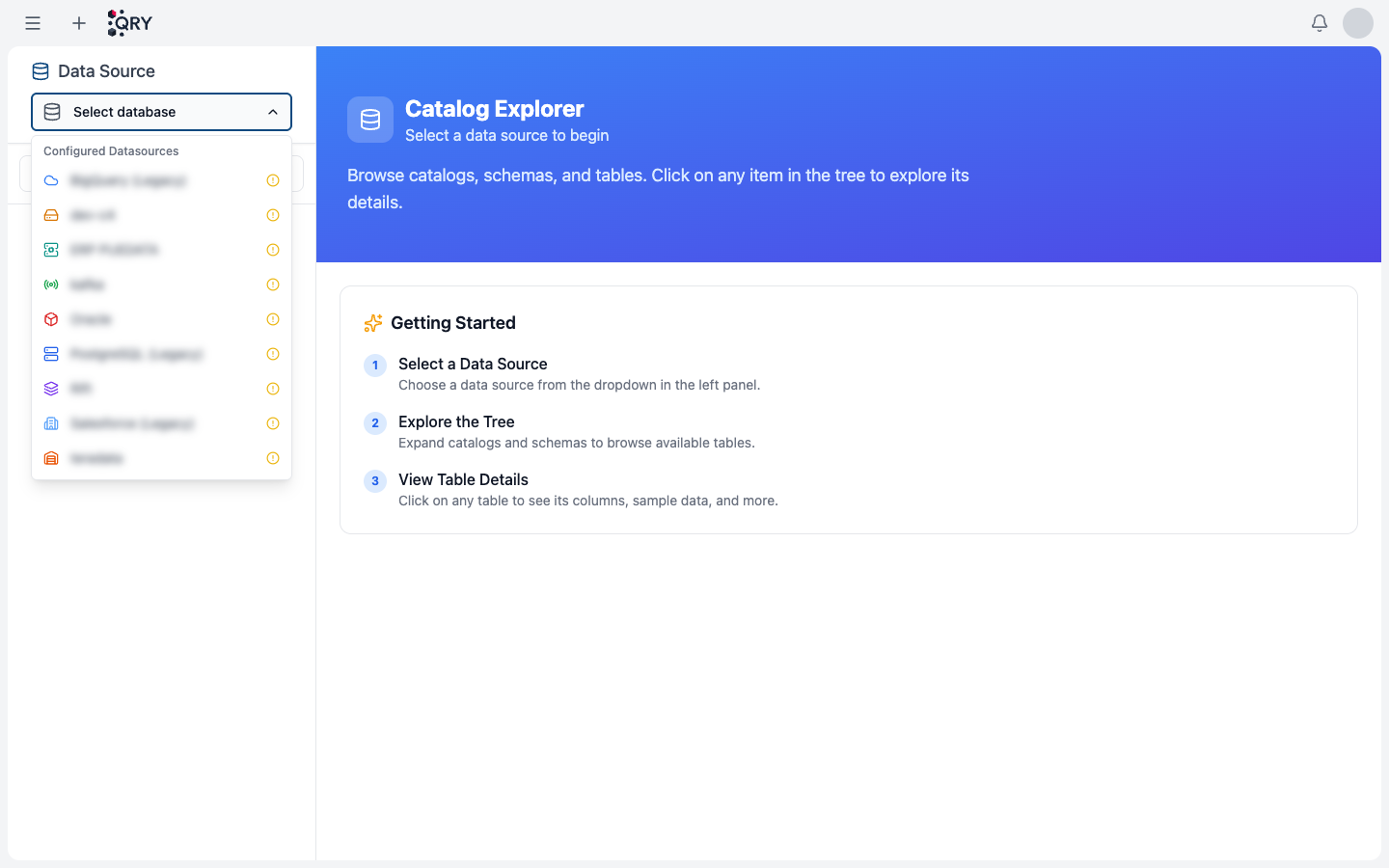
The dropdown lists every datasource your account has access to. If you expected to see one and don't, your admin needs to grant access — RBAC, ABAC tag policies, or DAC grants can all hide a datasource. See Connecting databases for the admin side.
For SAP HANA datasources you'll see an additional module scope in the tree — see SAP module integration.
3. Navigate to the schema you want
The left panel now shows a tree of catalogs and schemas. Expand a catalog and click the schema you want to chat against.
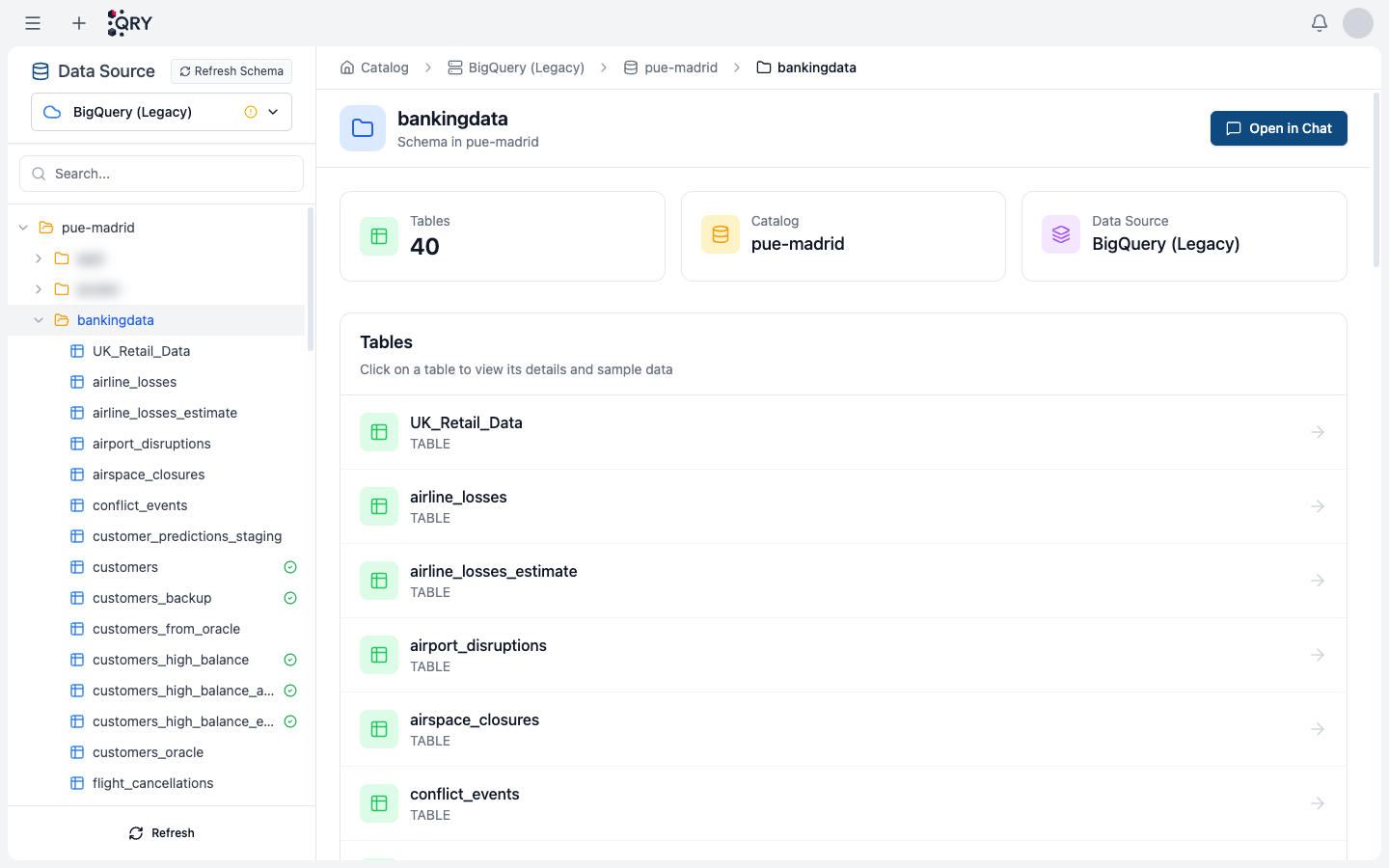
The right panel shows the schema's tables, total table count, and the parent catalog and data source. You can click any table to inspect its columns and a sample of its data without opening a conversation.
4. Click Open in Chat
When you're ready to start asking questions, click Open in Chat in the top-right of the schema panel. QRY creates a new conversation bound to that schema and brings you to the chat view.
The conversation now has the schema as its query scope — QRY will write SQL against it without you having to repeat the name in every prompt.
5. Ask your first question
Type a question in plain English in the prompt box at the bottom and press Enter (or Shift+Enter for a new line).
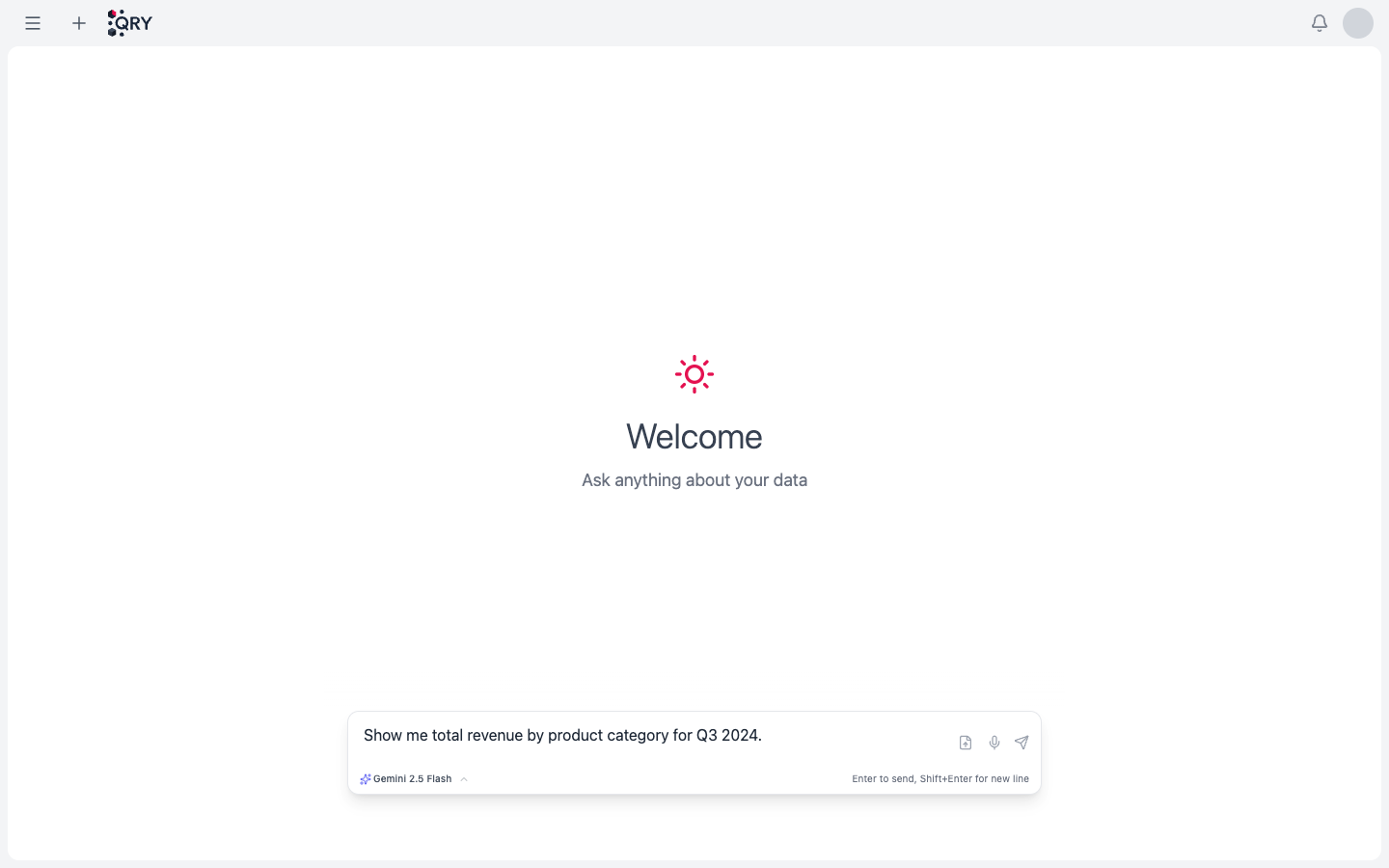
Good first questions when you're getting acquainted with a schema:
What tables do we have here?
Describe the structure of the customers table.
Once you've poked around, ask something concrete:
How many customers do we have in customers?
While QRY is answering you'll see a stream of:
- Processing details — the steps QRY is taking. Click the chevron to expand the SQL it ran and the rows it returned.
- Final answer — prose, plus tables and charts when relevant.
6. Iterate with follow-ups
QRY remembers the conversation context. Follow-ups don't need to repeat the setup:
Now break that down by country.
Plot it as a bar chart.
Filter to just customers active in the last 90 days.
If a result goes off track, you don't need to start over — see Checkpoints and rewind.
Result
After your first question against customers, you should see something like this — your prompt, a collapsible Processing Details block, and the final answer:
You: How many customers do we have in customers?
Processing Details (5)
QRY: In the
customerstable we have 5,000 customers in total.
Common issues
The datasource list is empty in the Catalog. Your account has no datasource grants. Contact your administrator. See Connecting databases for the admin side.
The schema is visible but Open in Chat is greyed out. You have read access to browse but not query. RBAC, ABAC, or DAC may apply at the schema or table level — ask your admin which rule is hiding the data.
The query times out.
You probably asked for too much data with no filter. Add a time range or LIMIT, or break the question into smaller follow-ups. The default query timeout is 30 seconds (configurable per datasource).
"Permission denied" on a specific table. Your account has access to the schema but not to that table. Same fix as above.
The chart looks wrong. Tell QRY. "That chart should be a line chart, not bars" or "sort the X axis by date, not by value" will usually fix it in one turn.
See also
- Selecting a datasource — how datasource → catalog → schema scoping works in detail.
- Attaching files — when your data is in a CSV, not a database.
- Canceling a query — Stop button and ESC.
- Sharing a conversation — public links once you have something worth showing.
- Prompting effectively — getting better answers faster.