Your first login
This page takes you from "I have credentials" to "I'm looking at the home screen and I know where to go next."
Goal
You finish this page logged in, oriented in the UI, and ready to start your first conversation.
Prerequisites
- A tenant URL from your administrator. It looks like
https://yourcompany.qry.dev. - Either an invitation email with a temporary password, or an OAuth account (Google / Microsoft / GitHub) on the email domain your tenant trusts.
Steps
1. Open the tenant URL
Navigate to the URL your admin gave you. You'll land on the login page.
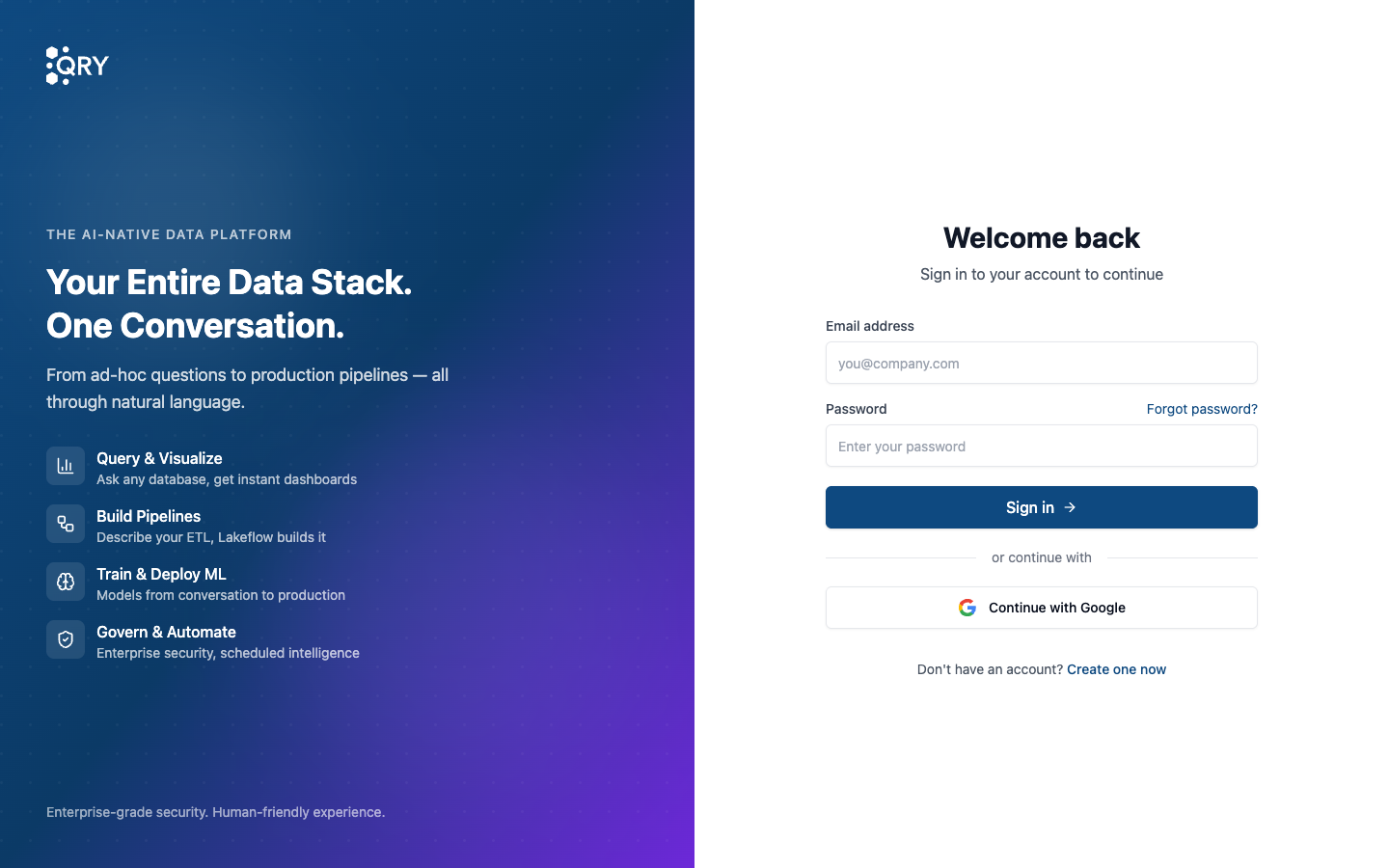
The marketing pane on the left summarises the four pillars of QRY — Query & Visualize, Build Pipelines, Train & Deploy ML, Govern & Automate — but the action is on the right.
2. Sign in
Two paths depending on how your tenant is set up:
- Email & password — type your email and password and click Sign in. If you got an invitation email, the password in there is temporary; you'll be asked to set a new one on first login.
- Continue with Google — click the button and pick the right Google account. Your tenant has a list of allowed email domains; if your account isn't in one, sign-in fails with a clear error.
Forgot your password? Click Forgot password? and follow the email link. No account yet? Click Create one now if your tenant allows self-registration (some don't — invitation-only).
3. Get oriented on the home
After signing in you land on the home screen. The header has three things on the left and three on the right:
- ≡ (top-left) — hover to open the navigation rail with Messages, Workspaces, Notebooks, Dashboards, Lakeflow, ML Hub, Nexus, Forge, Catalog, Presets.
- + — start a new conversation.
- QRY logo — back to home.
- Bell (top-right) — notifications.
- Avatar — your profile menu (settings, log out).
The centre of the screen is empty by design — start by typing in the prompt at the bottom or hover the menu to navigate elsewhere.
4. Try the Catalog before your first chat
Most of what makes QRY useful happens once a conversation is bound to a schema. Hover the menu, click Catalog, and pick the data source your admin granted you. From there you can browse tables and click Open in Chat to start your first analysis.
See Starting a conversation for the full walkthrough.
Result
You're logged in, you know where the Catalog and the navigation rail are, and you have a clear path to your first conversation.
Common issues
"Account not found" or "Domain not allowed". Your email or its domain isn't on your tenant's allow-list. Ask your administrator to invite you.
The "Continue with Google" button doesn't appear. Your tenant has Google OAuth disabled. Use email / password instead.
Signed in but the navigation menu has very few items. Your role grants access to a subset of features. The menu only shows items you can use — if you expect to see Forge or ML Hub and don't, ask your admin about your role.
"Your password has expired" on first login. Standard for invitation flow. Set a new password and you're in.
See also
- Quick start — your first answered query in 5 minutes.
- Core concepts — datasource, conversation, workspace, notebook, dashboard, data product.
- Starting a conversation — the canonical walkthrough.