Creating a migration wave
Forge migrates Teradata, Oracle and SQL Server workloads to BigQuery (or Cloudera). The unit of work is a wave: a named set of artifacts (tables, views, procedures, UDFs, macros) you migrate together. Waves are how you sequence a large migration into reviewable, deployable chunks.
This page walks you through setting up a project and creating the first wave inside it.
Goal
You finish this page with a Forge project connected to a source database, a wave created in the project, and the artifacts you want to migrate added to it.
Prerequisites
- A source connection (Teradata, Oracle or SQL Server) configured by your admin.
- A target BigQuery dataset (or Cloudera target, depending on your migration's destination).
- A workspace to anchor the project to — Forge projects are workspace-scoped, like notebooks and dashboards.
- The forge access permission in your role.
Steps
1. Open Forge
Hover the menu (≡) and click Forge.
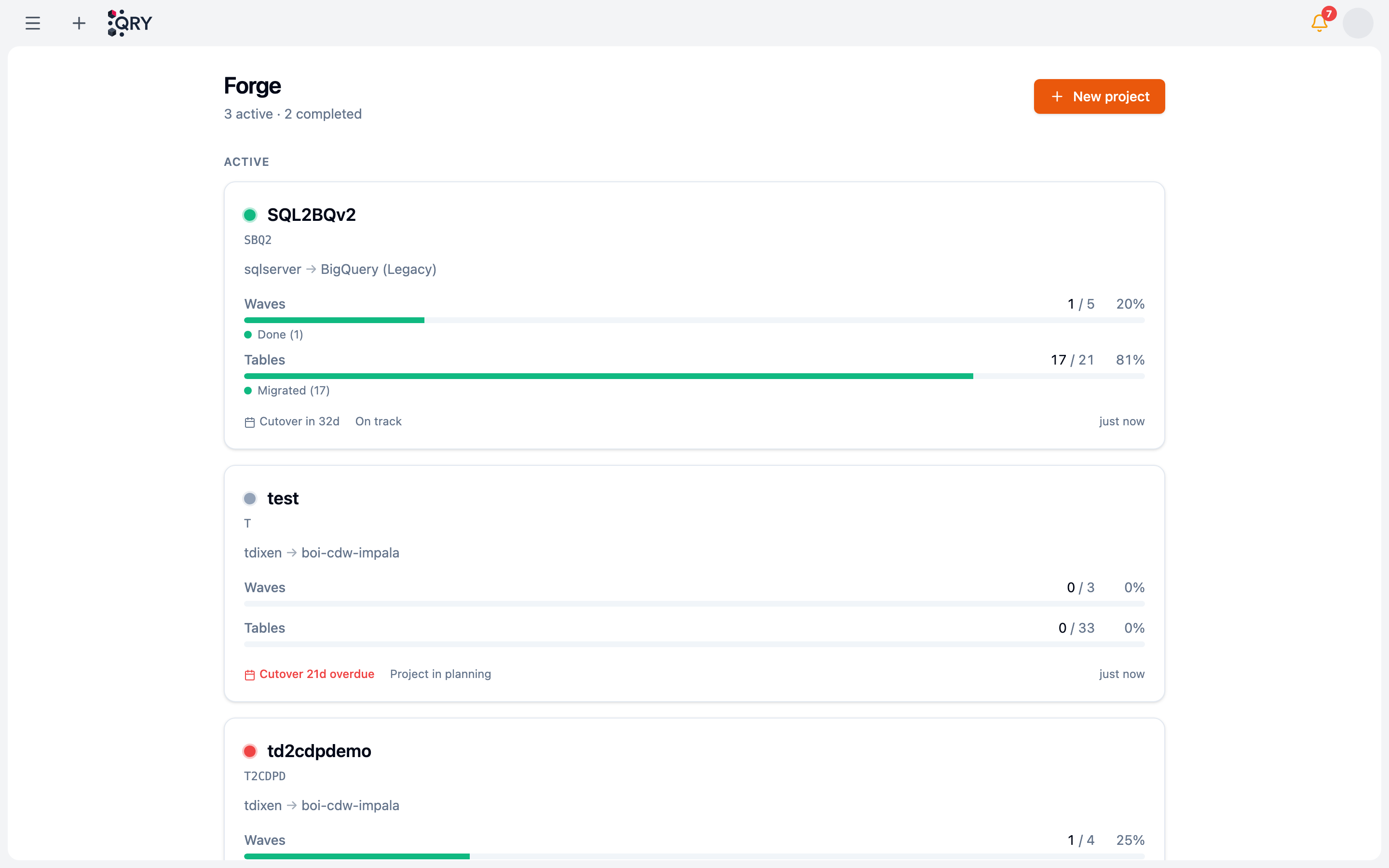
The landing has two sections — Active projects (in-flight migrations) and Completed ones. Each card shows the source → target combo, two progress bars (waves done out of total, tables migrated out of total), and any Cutover SLA overdue flag in red.
If your tenant is starting fresh the list is empty, and the page invites you to create your first project.
2. Create a project (or open an existing one)
Click New project. The wizard has four steps along the top: Identity → Connect → Scope → Plan.
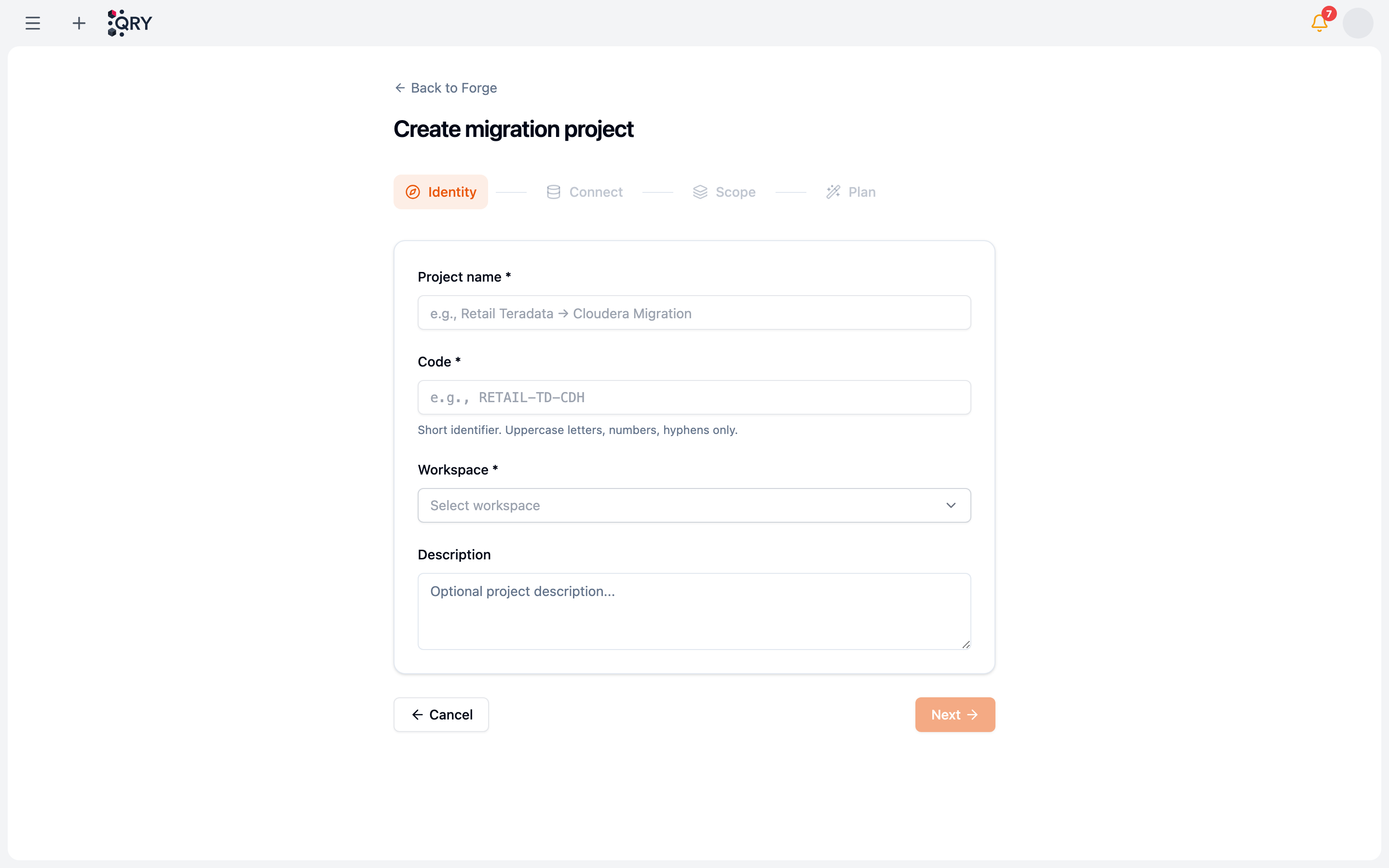
- Identity — Project name (e.g. Retail Teradata → BigQuery Migration), a short Code (uppercase letters, numbers, hyphens only, e.g.
RETAIL-TD-BQ) that tags the project across logs and metrics, the Workspace the project belongs to, and an optional description. - Connect — pick the source connection (Teradata, Oracle or SQL Server) and the target (BigQuery or Cloudera), both from connections your admin configured.
- Scope — choose which catalogs / databases / schemas of the source to ingest into the project's artifact catalog. Tighter scope = faster metadata ingestion + cleaner project.
- Plan — review and confirm. Translation is enabled by default; admin-controllable via
runtime_config.forge_translation.enabled. With it disabled, Forge can still copy tables but won't auto-translate views / procs / UDFs / macros.
Click Create. The project opens with empty waves and an artifact catalog populated from the source database's metadata for the scope you selected.
3. Create waves
Inside the project, open the Waves tab. You can build waves two ways.
Manually — click New Wave. A wave needs:
- Name — descriptive, scoped to the project.
- Owner — who's accountable for it.
- Description (optional) — what the wave covers.
The wave is created in Draft state. You can add and remove artifacts freely while it's draft.
Automatically from dependencies — click Generate Waves and Forge proposes a full set of waves from the artifacts' dependency graph:
- One wave per dependency level — base tables first, then the views, procedures and macros that build on them, ordered so a dependency always deploys before whatever needs it.
- Large tables split out — tables that route to Lakeflow get their own wave(s), apart from the fast direct-copy artifacts, so a long transfer doesn't hold up a quick wave. Very wide levels are also chunked so no single wave becomes unwieldy (the cap is tunable per tenant).
- Review waves — anything Forge can't place cleanly (circular dependencies, or objects whose dependencies it couldn't resolve from their SQL) goes to an explicit wave flagged in amber for you to review, rather than being mislabelled as a base table.
Generating waves replaces the project's draft waves, so Forge asks you to confirm when the project already has some. Waves that have already run are frozen — regenerating re-plans only what has not started, and the new waves are numbered after the frozen ones. The proposal is fully editable: move artifacts between waves while they're in draft.
Planned dates come from the graph, not from today: the window between now and the project's cutover SLA date is spread across dependency levels, so a wave that depends on another is never planned before it. Open a wave's drawer to move its planned start/end by hand; Forge warns when a date now contradicts a dependency. Once a wave runs, the timeline shows its actual span next to the plan.
4. Add artifacts to the wave
Browse the project's artifact catalog (under the Artifacts tab or via the catalog sidebar) and add what belongs in this wave. Two categories of artifact:
-
Tables — the actual data. These migrate either by direct copy or via Lakeflow:
- Direct copy — default for tables ≤10 GB and ≤10 M rows.
- Lakeflow delegation — automatic for tables >10 GB or >10 M rows. Forge generates a Lakeflow pipeline and runs the transfer through the external Spark cluster.
You don't pick which path — Forge does it from the metadata.
-
Translatable artifacts — views, stored procedures, UDFs, macros and table functions. These get auto-translated to the target dialect via LLM with bounded self-heal: if a translation fails to deploy, Forge re-prompts with the deploy error and retries up to N times before leaving the artifact in Failed for you.
When you add an artifact, Forge runs an initial impact analysis (dependencies, estimated row count for tables, character count for translatable artifacts) and shows it in the wave's row.
5. Translate before you run (optional, recommended)
Running a wave translates and deploys in one go — see Approving and deploying. If you would rather read the translations first, open the Execution tab and click Retranslate on the wave: every view, procedure and function in it is queued for translation with the current prompt, nothing is deployed, and hand-edited translations are left alone. Open any artifact from there to read the result; the wave will reuse whatever translation is present when you start it.
Tables need no translation — the wave copies them.
Result
A wave in your project, populated with the artifacts you want to migrate, planned in dependency order, and (optionally) translated and ready to read.
Common issues
Translation does nothing.
The translation feature flag is off (runtime_config.forge_translation.enabled = false) at tenant level. Ask an admin. The emergency global kill switch (FORGE_GLOBAL_KILL_SWITCH env) also disables it tenant-wide.
An artifact is Failed after the wave ran. The LLM couldn't produce code that survives the self-heal loop. Open the artifact — the Reviewing translations page covers Fix with AI, editing by hand, and skipping.
A table I added is missing from the wave. Look at the wave's metrics: tables >10 GB / >10 M rows route to Lakeflow and may show under a Pipelines sub-tab instead of the main wave row. Same wave, different execution path.
The artifact catalog is empty. Source-database metadata hasn't been ingested. Trigger a refresh from the project's settings, or ask an admin to check the source connection.
I added the wrong artifact and want to remove it. While the wave is in Draft, move it to another wave from the Artifacts tab. Once the wave has run, mark the artifact Skipped instead — it stays visible as outstanding debt rather than disappearing.
See also
- Reviewing translations — what to do once translations land.
- Approving and deploying — run validations, unlock the gate, deploy.
- Forge reference — full feature reference, including metric names (
qry_forge_*) and the alert group (qry.forge).