Sharing a conversation
A shared conversation is a read-only public page that renders the full chat — messages, processing details, tables, charts — for anyone with the link. No login required. The viewer sees exactly what you saw, frozen at the moment you clicked Share.
A shared link only includes messages up to the share point. Future turns you add to the conversation are not visible to viewers — they'd need a fresh share link to see new content.
Goal
You finish this page with a public link to a conversation that someone outside your tenant can open.
Prerequisites
- An existing conversation with at least one answered turn.
- The share conversations permission in your role (default for most user roles).
Steps
1. Open the conversation
Click the conversation in your sidebar (or visit it via its URL).
2. Open the conversation menu and click Share
In the conversation header, click the ⋯ button (next to the title), then click Share.
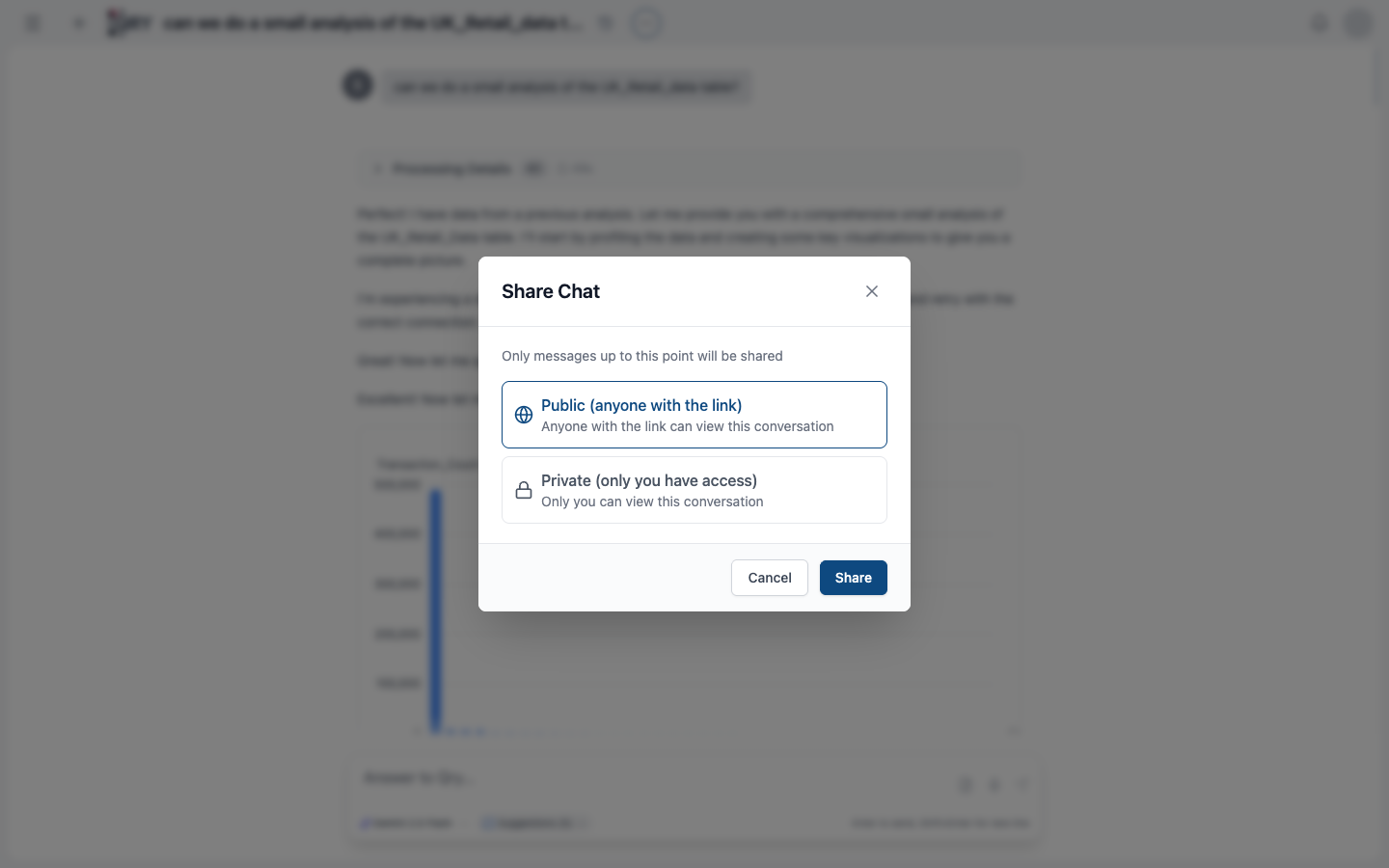
3. Choose visibility
The dialog gives you two options:
- Public — anyone with the link can view. Use this for stakeholders without QRY accounts.
- Private — only you can view. Switching a public conversation back to private revokes the existing link.
When Public is selected, QRY generates a stable share token. The same token persists if you share again later — the link doesn't change unless you revoke and re-share.
4. Click Share and copy the link
After confirming, QRY shows the URL (https://your-tenant.qry.dev/shared/<token>). Copy it and send it to whoever needs to see the analysis.
What the recipient sees
Opening the link shows a clean, read-only view of the conversation:
- All messages and their tool calls (collapsible).
- All tables, fully rendered with sort and pagination.
- All charts, fully interactive (hover, zoom, legends).
- Files you uploaded into the conversation, downloadable.
What the recipient does not see:
- The original datasource credentials.
- Any conversation turns you add after the share moment.
- Other conversations in your account.
Result
A working public URL that anyone can open without an account.
Common issues
The share link returns 404. Either the conversation has been deleted or you've turned the share back to Private. Both revoke the link.
A chart is missing in the shared view. Charts from Python cells are captured inline at conversation time. If a cell errored when you ran it but you "ignored" it locally, the chart never made it to the saved state. Re-run the cell and re-share.
The shared view shows turns I expected to be hidden. The share captures everything up to the moment you click Share. If the conversation already had those turns when you shared, they're included. To exclude them, rewind to a checkpoint before the turns you want hidden, then share.
My organisation requires share links to expire. There's no built-in expiry. Revoke shares periodically by re-opening the dialog and switching to Private, then Public again to rotate the token. Admins can also disable sharing globally per tenant.
Sharing from Telegram
If you started the conversation from the Telegram bot, type /share in the chat. The bot toggles the conversation public and replies with the same https://<tenant>/shared/<token> link, so you can forward it from your phone without opening the web UI.
See also
- Checkpoints and rewind — controlling exactly which turns are part of the share.
- Creating a dashboard — public sharing also works for dashboards (
/dashboards/shared/<token>). - Conversation sharing reference — full feature reference.
- Telegram bot —
/shareis one of several conversation commands available on Telegram.